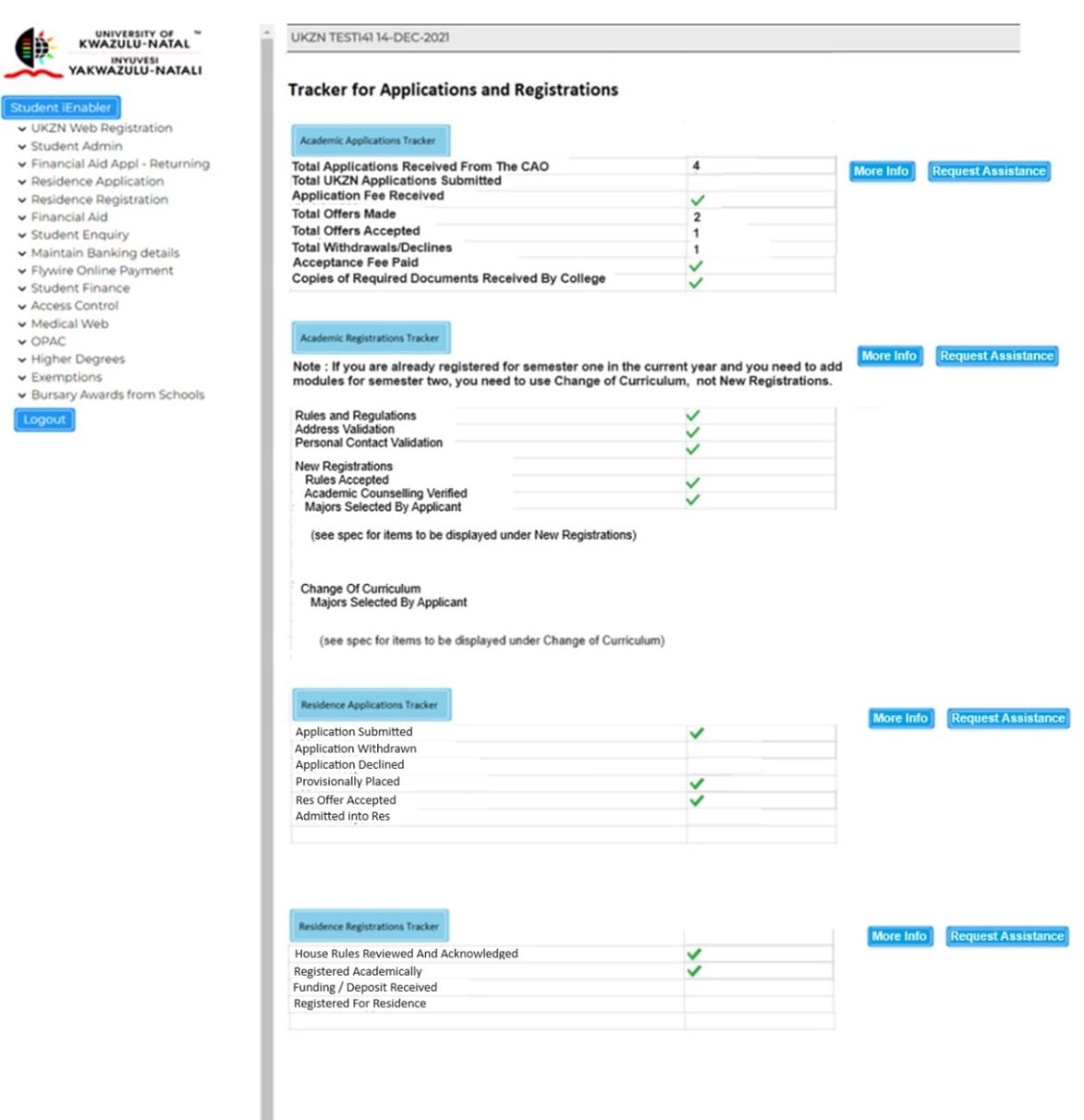
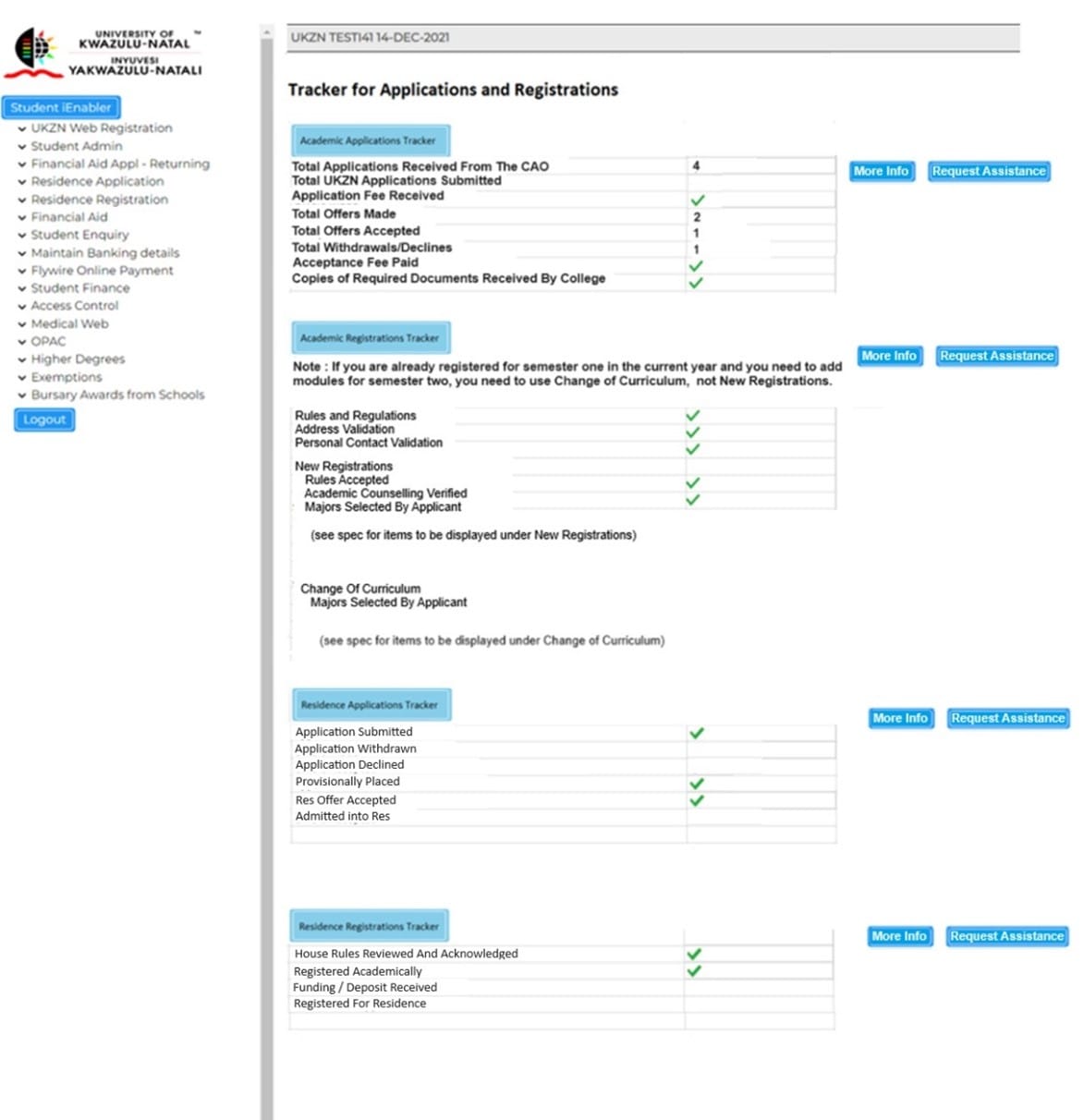
A new feature has been provided for 2025 which will enable you to track your progress during application and registration periods, and for you to be able to optionally request more information from the university via structured online options.
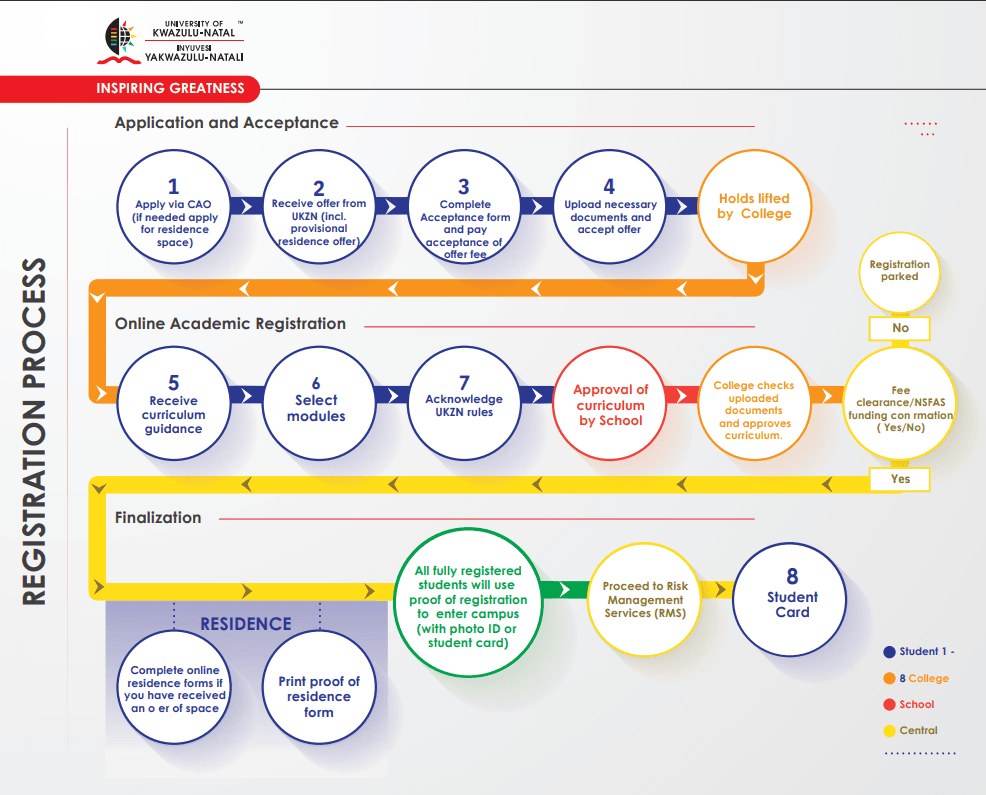
Please refer to the following Registration Process 2025 diagram.
Please note: The Student Tracker process is different for First-Time Entry Students and Returning Students. By clicking on the red “First-year Entry Student Tracker” tab button below you can browse the information, and by default First-Time Entry student is shown on your screen . If you are a Returning Student clicking the “Returning Student Tracker” tab button below will show you information for Returning Students.
Gaining Access to the Student Tracker as a First Time Entry Applicant
PLEASE NOTE: For first time entering applicants/students, please click on “Forgot Student Number” when you access the login page.
Step 1 of 5
Click the “GET STARTED” button below to gain access to the Student Tracker as a First Time Entry Applicant.
Or copy and paste this link in a new tab: https://erpweb.ukzn.ac.za/pls/ukznint/w99pkg.mi_login?numtype=S
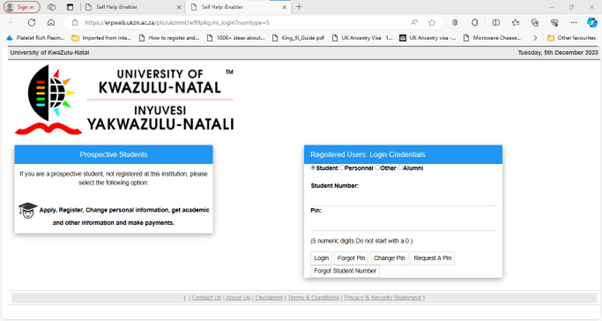
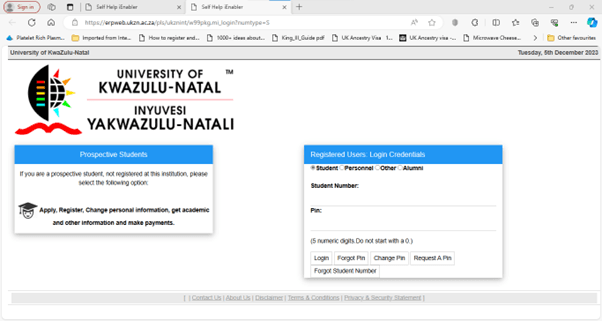
Which will display the following screen:
Step 2 of 5
As you will not yet have received a Student Number or a Pin, please click on the “Forgot Student Number” button.
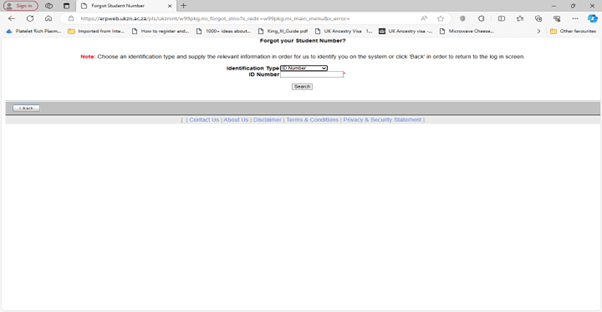
The following screen will be displayed:
Step 3 of 5
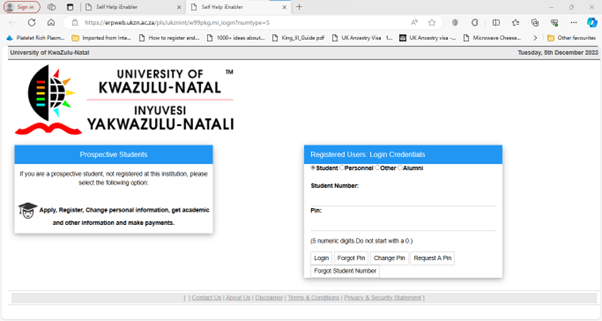
Here select on the drop-down list shown as “Identification Type” and enter either your ID number, your Passport Number, or your Email address and your student number will be Emailed and SMS texted to you. Once you have a Student Number, please return to the login page, and enter your Student Number, and click on “Request a Pin”. The Pin will be similarly Emailed and SMS texted to you. You can now return to the login page and enter your Student Number and your Pin:
Step 4 of 5
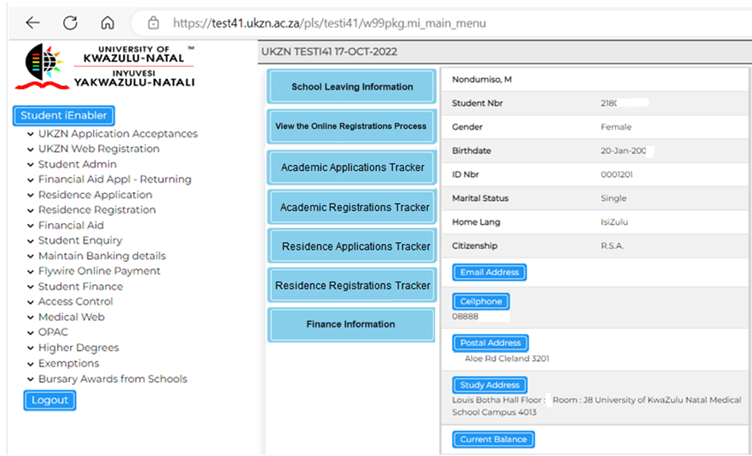
Once you have successfully entered your Student Number and your Pin you will be presented with the following screen:
Step 5 of 5
Please click on the desired step (e.g. Academic Applications Tracker, Academic Registration Tracker etc.) and the Student Tracker page will be shown to you, indicating where you are in the process.
Gaining Access to the Student Tracker as a Returning Student
PLEASE NOTE: for returning applicants/students please click the following link from the relevant UKZN web page.
Step 1 of 3
Click the “GET STARTED” button below to gain access to the Student Tracker as a Returning Student.
Or copy and paste this link in a new tab: https://erpweb.ukzn.ac.za/pls/ukznint/w99pkg.mi_login?numtype=S
Which will display the following screen:
Step 2 of 3
PLEASE NOTE: As a returning students, please enter your Student Number and Pin. If you have forgotten your Pin, or wish to change your Pin or request a Pin, please click the appropriate option.
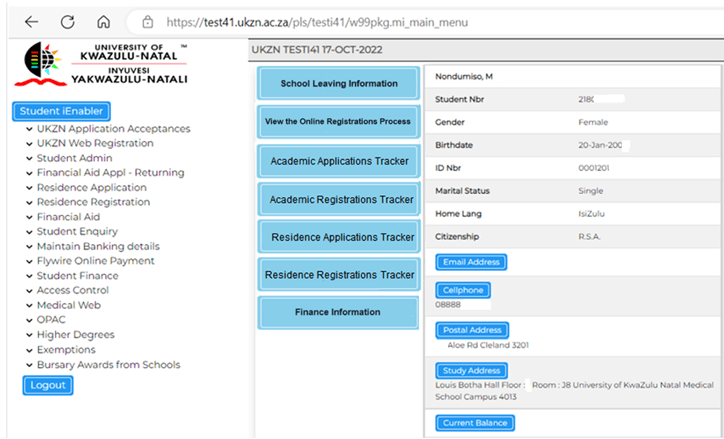
Once you have successfully entered your Student Number and your Pin you will be presented with the following screen:
Step 3 of 3
Please click on the desired step (e.g. Academic Applications Tracker, Academic Registration Tracker etc.) and the Student Tracker page will be shown to you, indicating where you are in the process.